compound-mini
Compound Mini App - User Guide
Welcome to Compound Mini App! This guide will walk you through everything you need to know to get started with lending and borrowing on Compound Protocol directly from Telegram.
💻 Recommended Platform
For the best experience, we strongly recommend using Telegram Web on desktop:
Why Telegram Web?
- ✅ Smooth Wallet Integration: Seamless connection with browser-based wallets (MetaMask extension, etc.)
- ✅ No Deep Link Issues: Avoids common Web3 deeplink problems that occur on mobile Telegram
- ✅ Better Performance: Faster loading and smoother interactions
- ✅ Easier Testing: More reliable for testing all features end-to-end
How to Access Telegram Web
- Open your web browser (Chrome, Firefox, Edge, etc.)
- Go to web.telegram.org
- Log in with your phone number
- You’re now using Telegram Web!
Note:
- Desktop Telegram App: Not recommended - may have compatibility issues with Web3 wallets
- Mobile Telegram App: Works but may experience deeplink issues when connecting wallets. If you encounter wallet connection problems on mobile, try Telegram Web instead.
📱 Getting Started
Step 1: Find the App on Telegram
- Open Telegram Web in your browser (recommended) or the Telegram app
- In the search bar, type
@compoundminiapp - Click open to launch the app
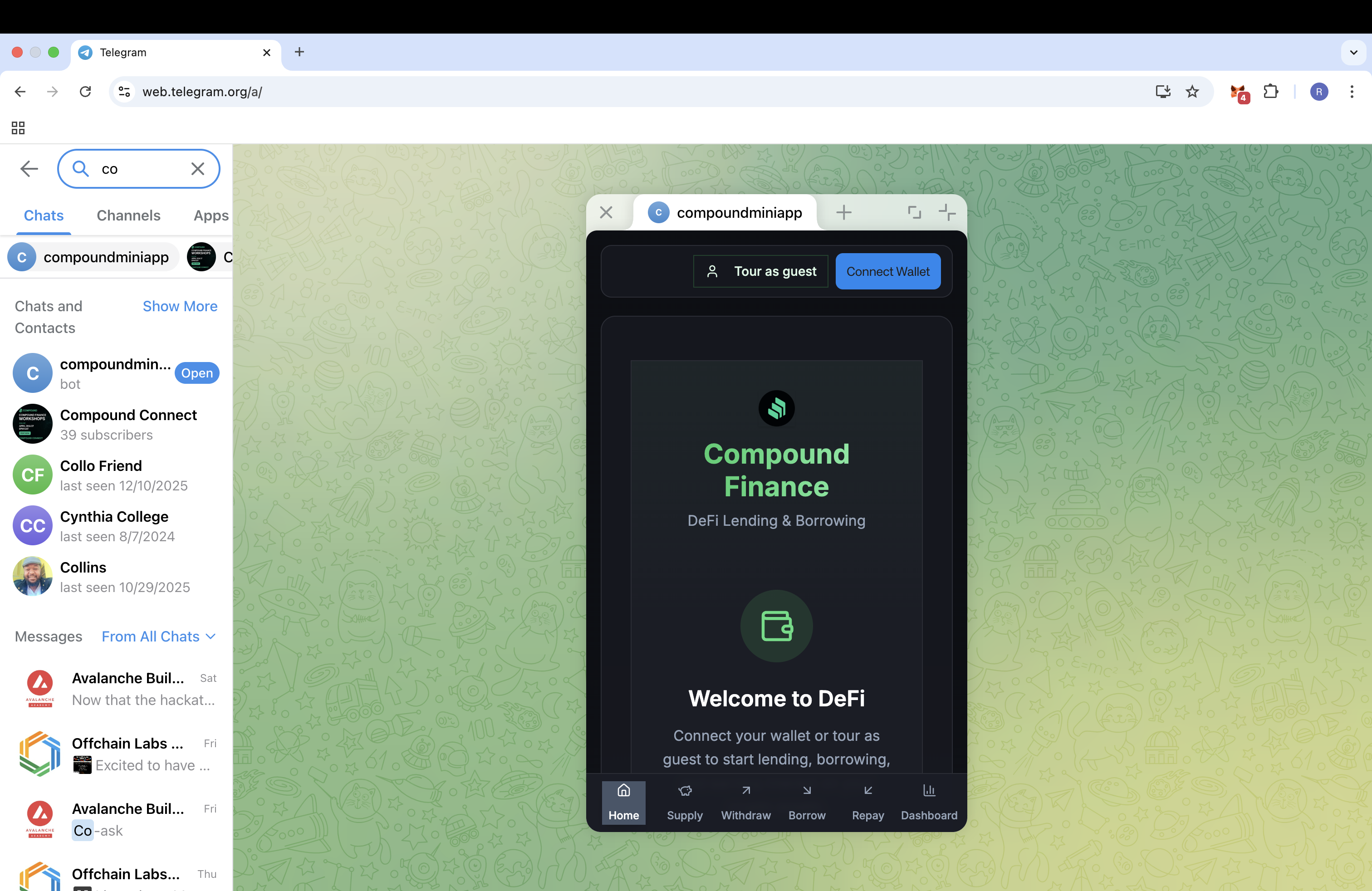
🎉 Congratulations! You’re now in the Compound Mini App.
🎮 First Time Experience
Welcome Screen
When you first open the app, you’ll see a welcome modal with:
- An overview of what you can do
- An Enter button to get started
Tap Enter to proceed to the main app.
Guest Mode vs. Wallet Connection
You have two options to explore the app:
Option 1: Tour as Guest (Recommended for first-time users)
- Explore the app without connecting a wallet
- View all features and interface
- No transactions possible (view-only mode)
- Perfect for learning how the app works
Option 2: Connect Wallet
- Full functionality with real transactions
- Supply assets, borrow, and manage positions
- Requires a wallet with Sepolia testnet ETH
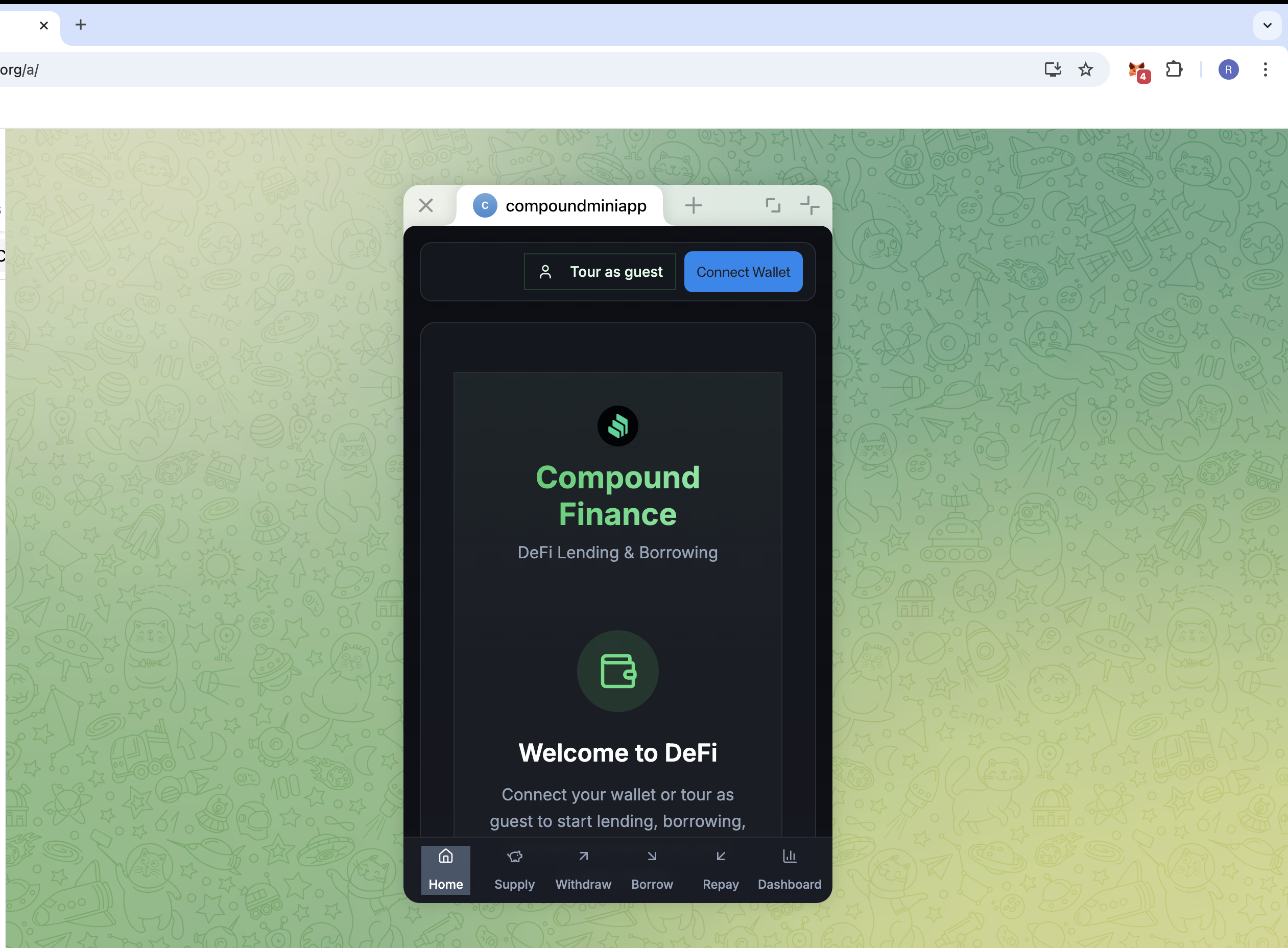
For this guide, we’ll connect a wallet to test all features.
🔐 Setting Up Your Wallet
Step 1: Get a Wallet
You’ll need a Web3 wallet that supports Ethereum. Popular options include:
- MetaMask (Browser extension - Recommended for Telegram Web)
- MetaMask (Mobile app - for mobile testing)
- Trust Wallet (Mobile app)
- Rainbow Wallet (Mobile app)
- Coinbase Wallet (Mobile app)
For this guide, we’ll use MetaMask browser extension, which works best with Telegram Web.
Step 2: Install MetaMask
Recommended: Browser Extension (for Telegram Web)
- On Desktop (Recommended):
- Install the MetaMask browser extension from metamask.io
- Click “Install MetaMask for [Your Browser]”
- Add the extension to your browser
- Create a new wallet or import an existing one
- Important: Save your seed phrase securely!
- The extension will appear in your browser toolbar
Alternative: Mobile App (if using mobile Telegram)
- On Mobile:
- Download MetaMask from the App Store (iOS) or Google Play (Android)
- Open the app and create a new wallet or import an existing one
- Important: Save your seed phrase securely!
- Note: Mobile may have deeplink issues - if wallet connection fails, try Telegram Web instead
Step 3: Add Sepolia Testnet
Since we’re testing on Sepolia testnet, you need to add it to your wallet:
- Open MetaMask
- Tap/click the network dropdown (usually shows “Ethereum Mainnet”)
- Scroll down and tap “Add Network” or “Add a network manually”
- Enter the following details:
- Network Name: Sepolia
- RPC URL:
https://sepolia.infura.io/v3/YOUR_INFURA_KEYorhttps://sepolia.publicnode.com - Chain ID: 11155111
- Currency Symbol: ETH
- Block Explorer URL:
https://sepolia.etherscan.io
- Tap Save
You should now see “Sepolia” as your selected network.
💧 Getting Test ETH from a Faucet
You’ll need Sepolia ETH to pay for gas fees and to wrap into WETH. Here’s how to get it:
Step 1: Find a Sepolia Faucet
Popular Sepolia testnet faucets:
- Alchemy Sepolia Faucet: sepoliafaucet.com
- Infura Sepolia Faucet: infura.io/faucet/sepolia
- QuickNode Faucet: faucet.quicknode.com/ethereum/sepolia
Step 2: Request Test ETH
- Open one of the faucet websites in your browser
- Connect your MetaMask wallet (if required)
- Enter your wallet address:
- Open MetaMask
- Tap/click on your account name at the top
- Tap “Copy address to clipboard”
- Paste it into the faucet form
- Complete any required verification (CAPTCHA, social media follow, etc.)
- Tap “Send Me ETH” or “Request ETH”
- Wait a few moments for the transaction to complete
Note: Most faucets have rate limits (e.g., once per 24 hours). You typically receive 0.1-0.5 Sepolia ETH per request.
Step 3: Verify You Received ETH
- Open MetaMask
- Make sure you’re on the Sepolia network
- Check your balance - you should see your test ETH
- You can also check on Sepolia Etherscan by searching for your address
🔄 Wrapping ETH to WETH
The Compound Mini App uses WETH (Wrapped ETH) for supply and borrow operations. You need to wrap your Sepolia ETH into WETH first.
Step 1: Go to SepoliaScan
- Open your browser and go to Sepolia Etherscan
- Make sure you’re on the Sepolia testnet (check the network indicator)
Step 2: Find the WETH Contract
- In the search bar, enter the WETH contract address:
0x2D5ee574e710219a521449679A4A7f2B43f046ad - Press Enter or tap Search
- You’ll be taken to the WETH contract page
Step 3: Connect Your Wallet
- On the WETH contract page, look for the “Contract” tab
- Click on the “Contract” tab
- You’ll see a “Connect to Web3” button - click it
- Select MetaMask from the wallet options
- Approve the connection in MetaMask
Step 4: Deposit ETH (Wrap to WETH)
- Scroll down to find the “Write Contract” section
- Look for the “deposit” function
- Click “Write” or “deposit” button
- A MetaMask popup will appear
- Review the transaction:
- Amount: Enter how much ETH you want to wrap (e.g., 0.1 ETH)
- Gas fee: Review the estimated gas cost
- Click “Confirm” in MetaMask
- Wait for the transaction to be confirmed (usually 10-30 seconds)
What’s happening: The deposit function wraps your ETH into WETH. For every 1 ETH you deposit, you receive 1 WETH.
Step 5: Verify Your WETH Balance
- Go back to the WETH contract page on SepoliaScan
- Click the “Read Contract” tab
- Find the “balanceOf” function
- Enter your wallet address in the address field
- Click “Query”
- You should see your WETH balance (it will be in wei, so divide by 10^18 to see the actual amount)
Alternative: You can also check your WETH balance in MetaMask:
- Open MetaMask
- Tap “Import tokens” at the bottom
- Enter the WETH contract address:
0x2D5ee574e710219a521449679A4A7f2B43f046ad - Tap “Add Custom Token”
- Your WETH balance will now appear in MetaMask
🏦 Using the Compound Mini App
Now that you have WETH, let’s explore the app features!
Step 1: Connect Your Wallet
- In the Compound Mini App (still open in Telegram Web)
- Look at the top right corner - you’ll see “Tour as guest” and “Connect Wallet” buttons
- Click “Connect Wallet”
- A wallet connection modal will appear
- Choose your wallet:
- Injected (Recommended): If using MetaMask browser extension, it will appear automatically and connect seamlessly
- WalletConnect: Alternative option - scan QR code with MetaMask mobile app (may have issues on mobile Telegram)
- Approve the connection in MetaMask
- Select the Sepolia network if prompted
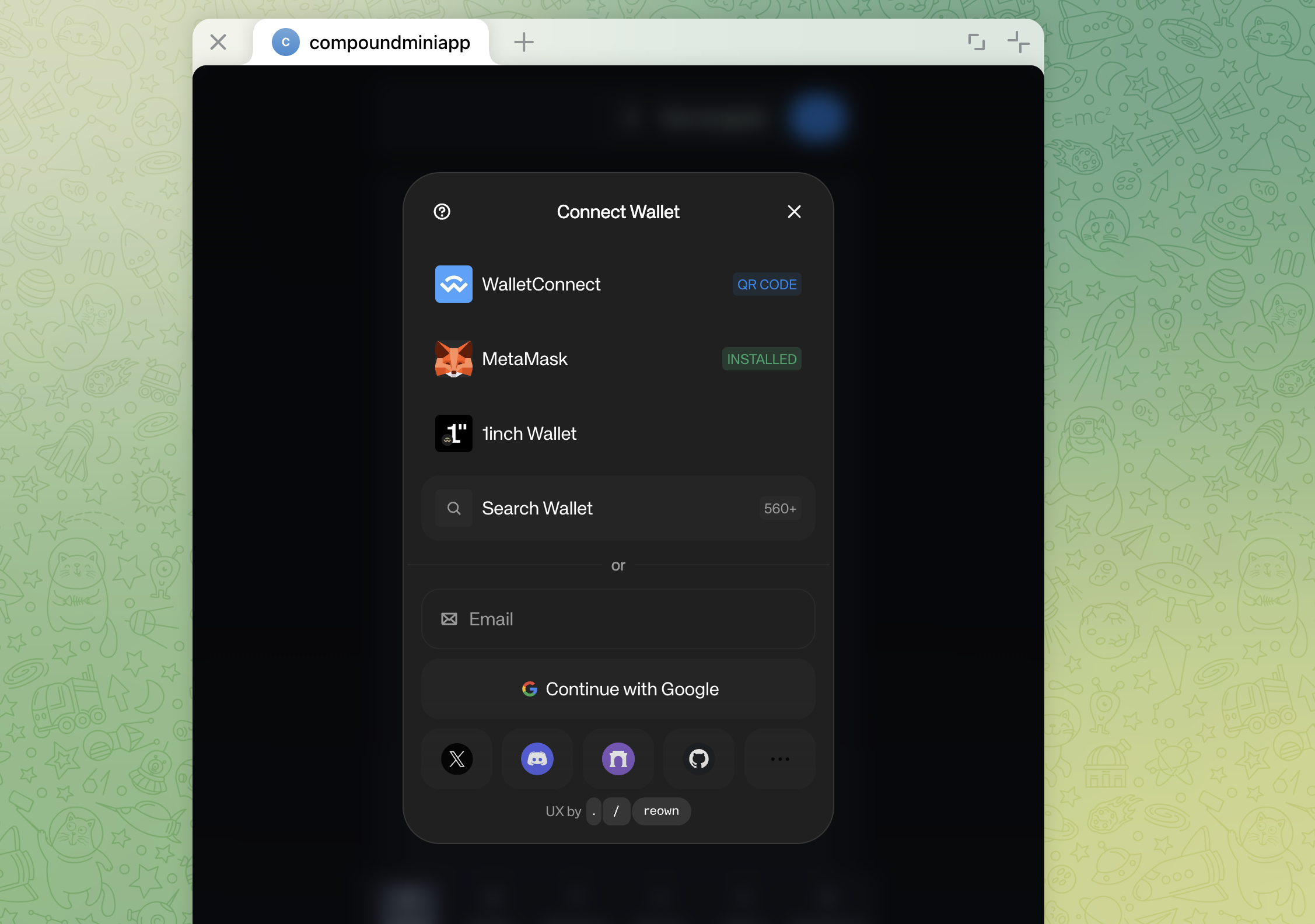
Tip: If you’re using Telegram Web with MetaMask extension, the connection should be instant and smooth. If you encounter issues, make sure:
- MetaMask extension is installed and unlocked
- You’re using Telegram Web (not desktop app)
- Your browser allows pop-ups from Telegram
Success! Your wallet is now connected. You’ll see your wallet address in the header.
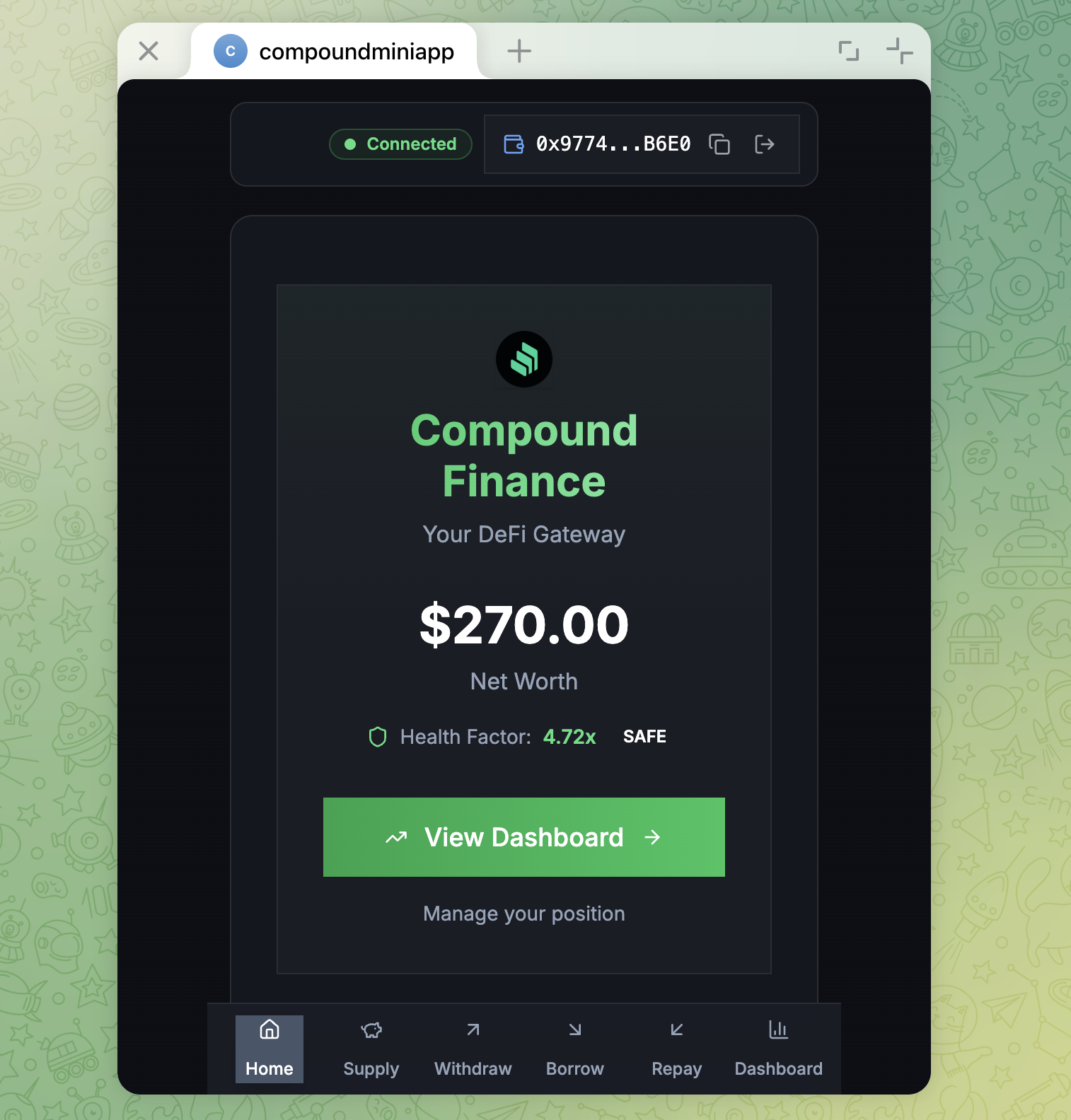
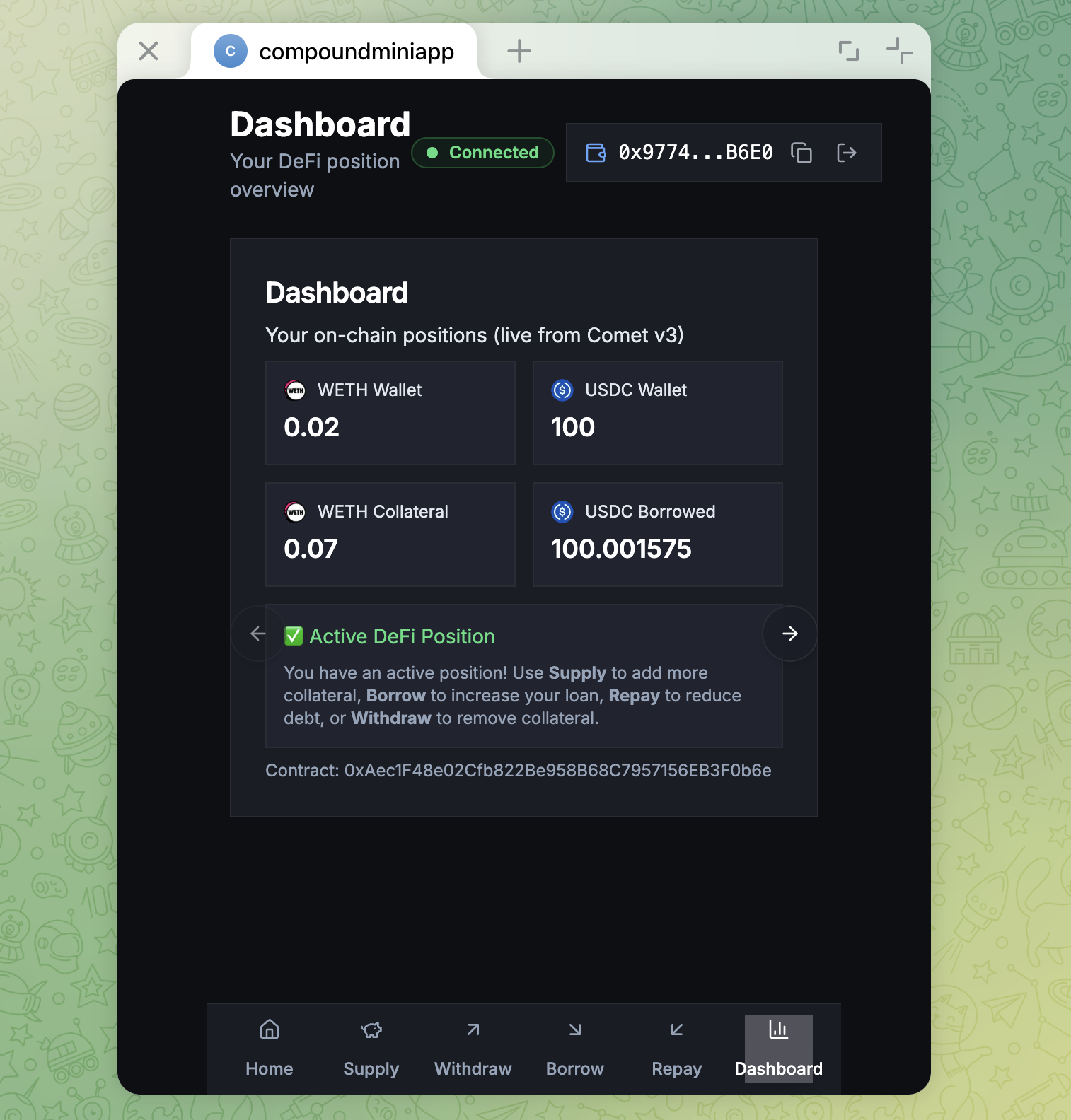
Step 2: Explore the Dashboard
- Tap the Dashboard icon in the bottom navigation
- You’ll see:
- Current positions
- Supply and borrow balances
- Health factor in the next slides (if you have positions)
Step 3: Supply WETH (Earn Interest)
- Tap the Supply icon in the bottom navigation (or from the home page)
- You’ll see:
- Your WETH wallet balance
- Your current supplied WETH
- Supply APY (Annual Percentage Yield)
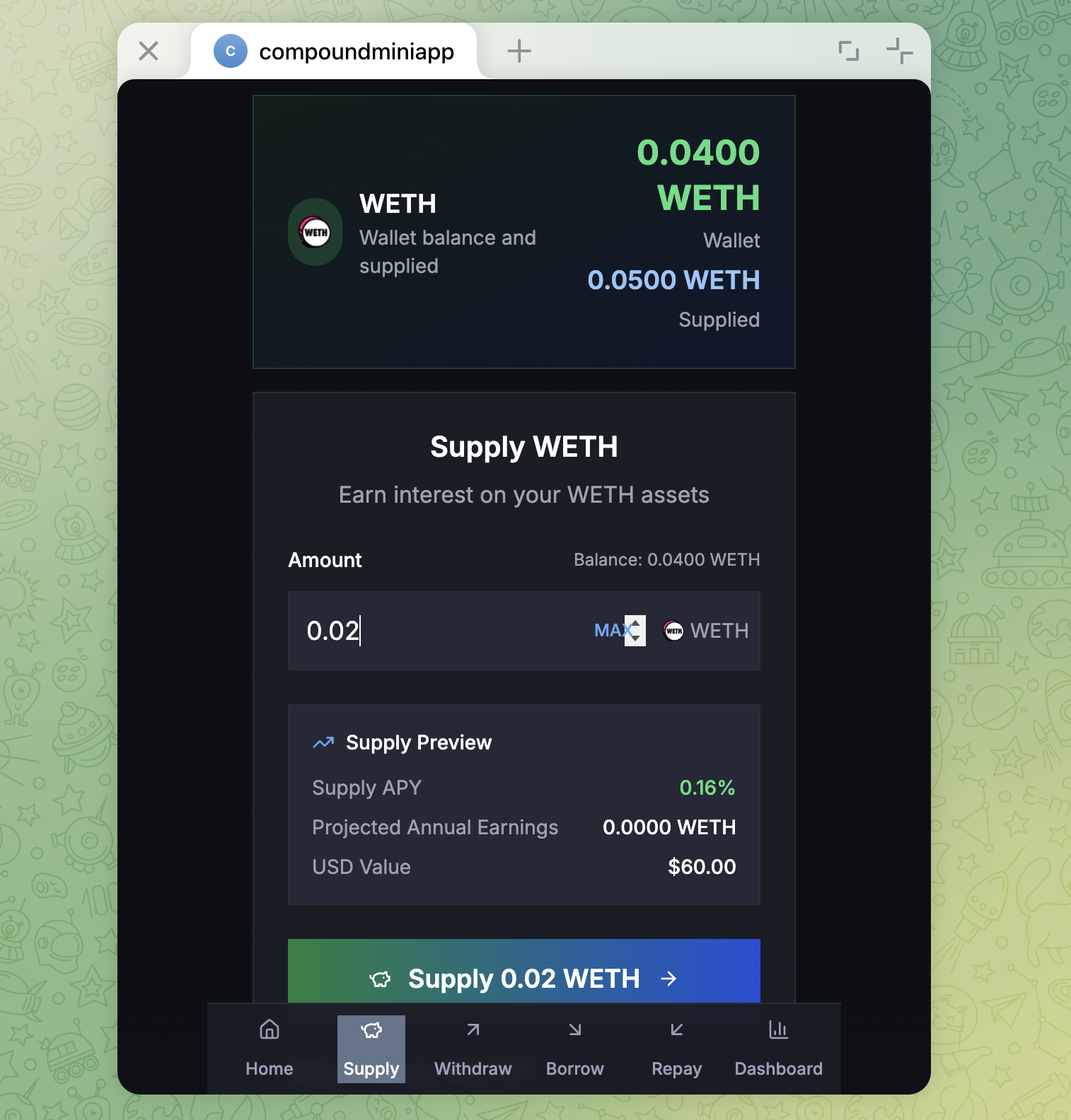
- Enter the amount of WETH you want to supply:
- Type the amount in the input field
- Or tap “MAX” to supply all your WETH
- Review the supply preview:
- Supply APY
- Projected annual earnings
- USD value
- Tap “Supply [amount] WETH” button
- MetaMask will pop up - review and confirm the transaction
- Wait for confirmation (this may take 10-30 seconds)
- Success! You’ll see a success screen with a “Go to Dashboard” button
What’s happening: You’re depositing WETH into Compound Protocol, which will start earning interest immediately.
Step 4: View Your Position
- After supplying, tap “Go to Dashboard” from the success screen
- Or navigate to Dashboard from the bottom menu
- You’ll now see:
- Your supplied WETH amount
- Your net worth updated
- Health factor (should be very high since you haven’t borrowed yet)
Step 5: Borrow USDC (Optional)
Now that you have collateral (supplied WETH), you can borrow USDC:
- Tap the Borrow icon in the bottom navigation
- You’ll see:
- Your collateral balance (supplied WETH)
- Current health factor
- Borrow APY
- Maximum borrowable amount
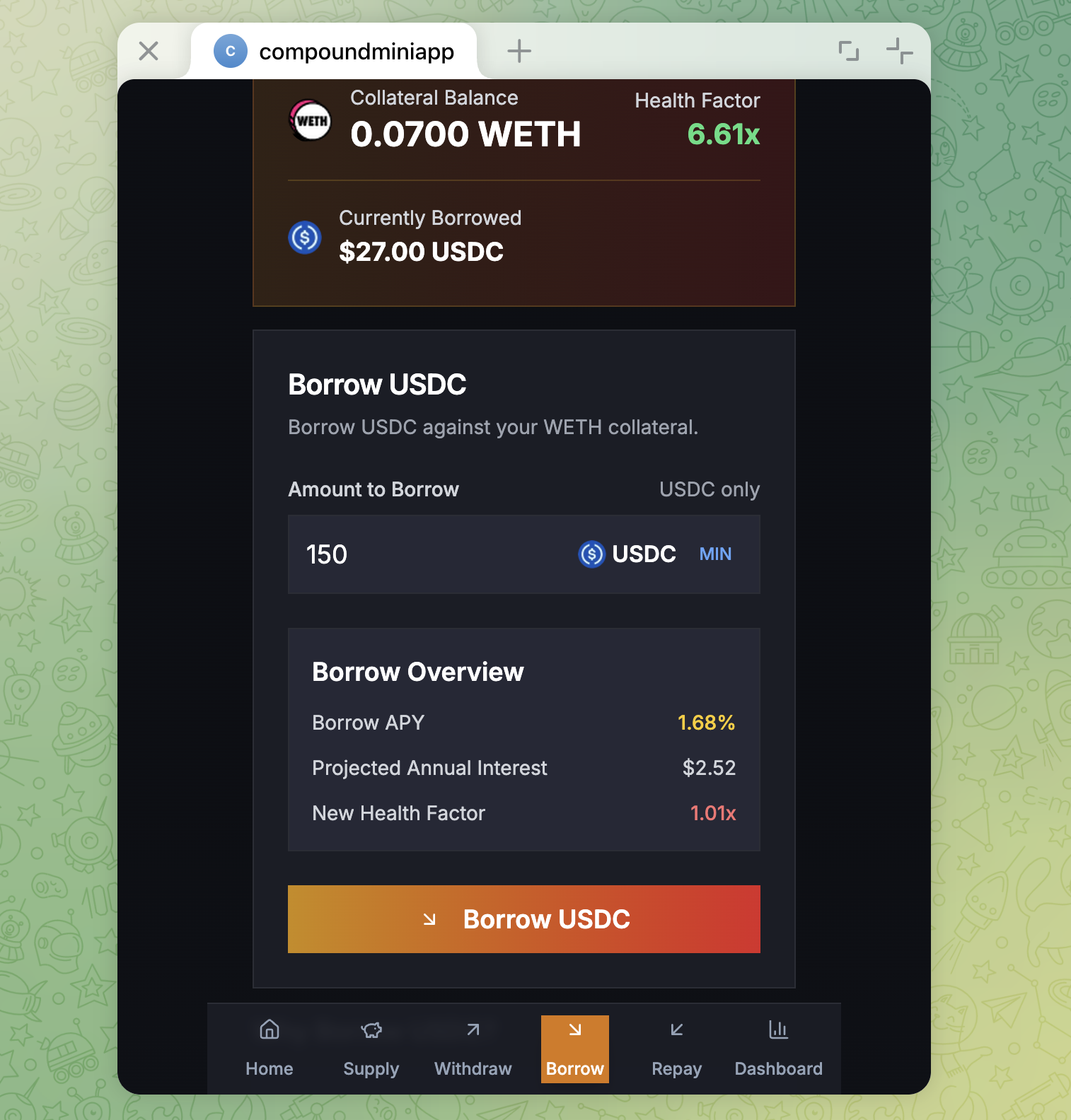
- Enter the amount of USDC you want to borrow
- Review the borrow preview:
- Borrow APY
- New health factor (make sure it stays above 1.5 for safety!)
- Total borrowed amount
- Tap “Borrow [amount] USDC” button
- MetaMask will pop up - review and confirm
- Wait for confirmation
- Success! You’ll see a success screen
Important Notes:
- You can only borrow up to a certain percentage of your collateral (typically 85%)
- Your health factor will decrease when you borrow
- Keep your health factor above 1.5 to avoid liquidation risk
Step 6: Withdraw WETH
If you want to withdraw some of your supplied WETH:
- Tap the Withdraw icon in the bottom navigation
- You’ll see:
- Your current supplied WETH
- Available to withdraw
- Supply APY
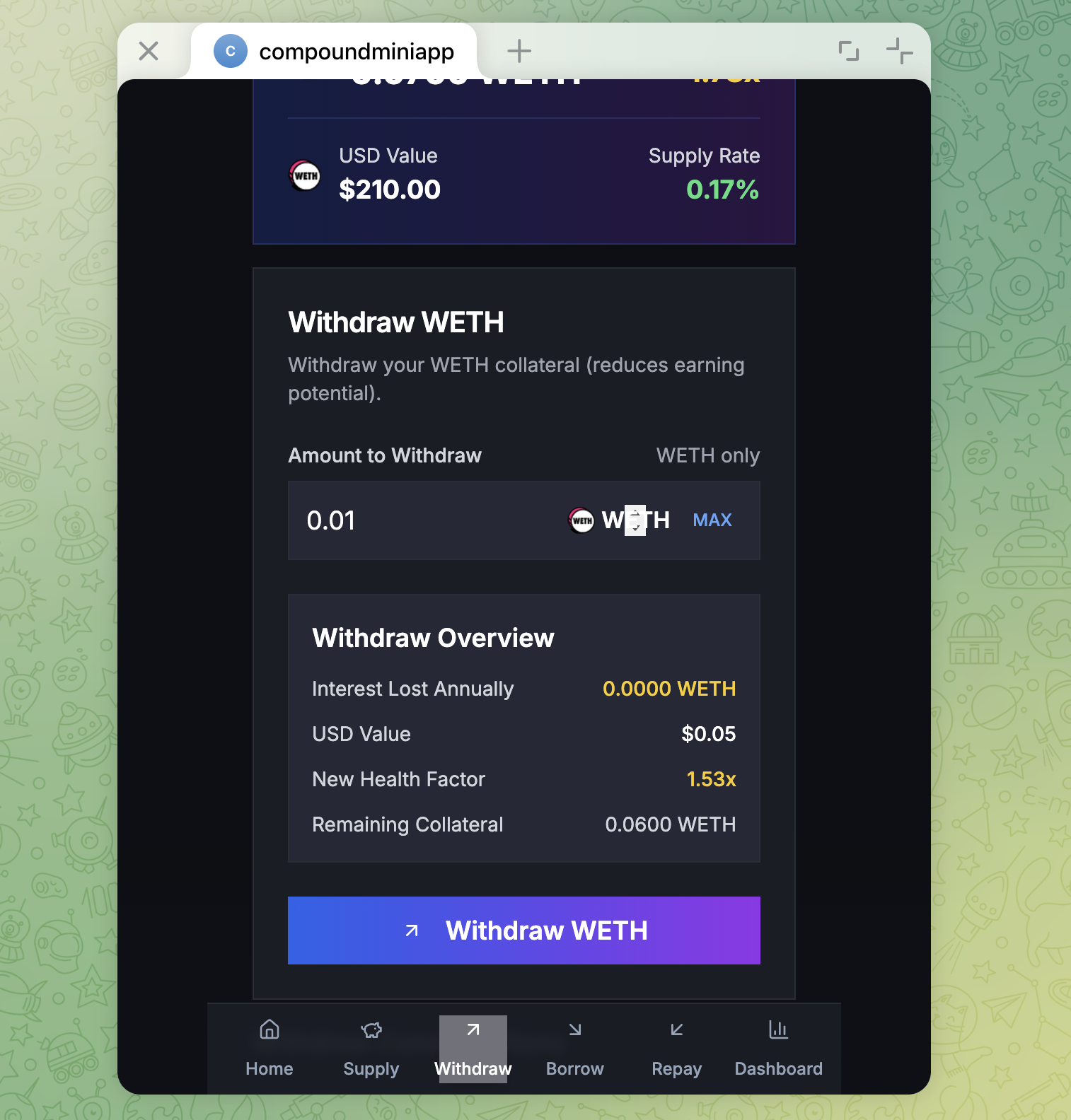
- Enter the amount you want to withdraw
- Review the preview:
- Interest lost annually
- New health factor (if you have borrows)
- Remaining collateral
- Tap “Withdraw [amount] WETH” button
- Confirm in MetaMask
- Wait for confirmation
Note: You can only withdraw if your health factor remains safe after withdrawal.
Step 7: Repay Borrowed USDC
To reduce your debt and improve your health factor:
- Tap the Repay icon in the bottom navigation
- You’ll see:
- Your current borrow balance
- Borrow APY
- Your USDC wallet balance
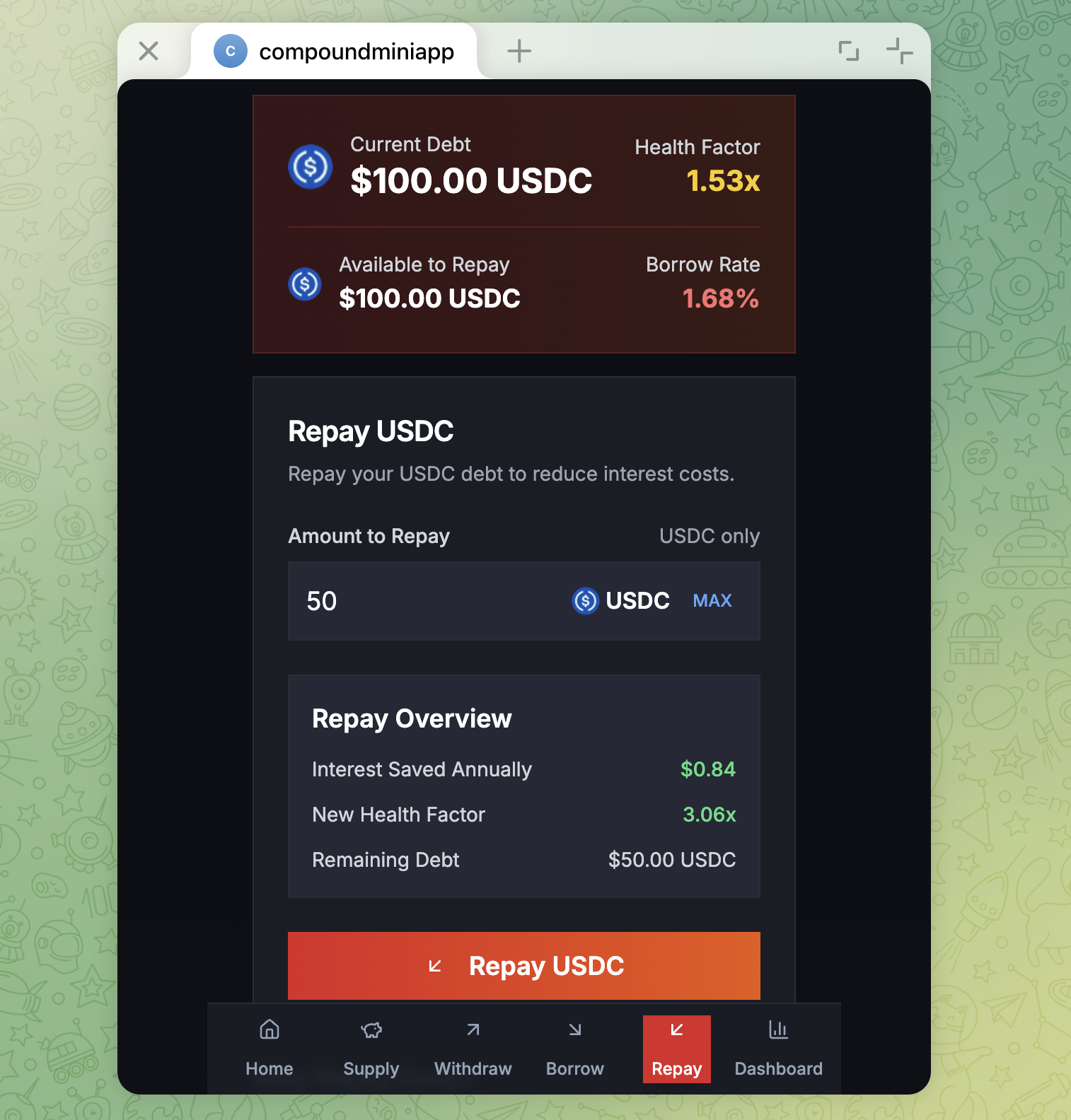
- Enter the amount of USDC you want to repay
- Review the preview:
- Interest saved annually
- New health factor
- Remaining debt
- Tap “Repay [amount] USDC” button
- Confirm in MetaMask
- Wait for confirmation
Note: You’ll need USDC in your wallet to repay. You can get test USDC from faucets or by borrowing it first.
💡 Tips and Best Practices
Health Factor Management
- Health Factor > 2.0: Very safe, you can borrow more
- Health Factor 1.5 - 2.0: Safe, but monitor closely
- Health Factor < 1.5: Risky! Consider repaying debt or adding collateral
- Health Factor < 1.0: At risk of liquidation
Gas Fees
- All transactions on Sepolia require gas fees (paid in ETH)
- Keep some ETH in your wallet for gas, don’t wrap everything
- Gas fees on testnets are usually very low
Interest Rates
- Supply APY: The interest you earn on supplied assets
- Borrow APY: The interest you pay on borrowed assets
- Rates are variable and change based on market conditions
Guest Mode
- Use guest mode to explore the app without connecting a wallet
- Perfect for learning the interface
- No real transactions possible in guest mode
❓ Troubleshooting
“Insufficient Balance” Error
- Problem: You don’t have enough WETH or ETH
- Solution:
- Check your wallet balance
- Make sure you’ve wrapped ETH to WETH for supply operations
- Keep some ETH for gas fees
“Transaction Failed” Error
- Problem: Transaction was rejected or failed
- Solutions:
- Check you have enough ETH for gas
- Make sure you’re on Sepolia testnet
- Try increasing gas limit in MetaMask
- Wait a moment and try again
“Network Mismatch” Error
- Problem: Your wallet is on the wrong network
- Solution: Switch MetaMask to Sepolia testnet
Can’t Connect Wallet
- Problem: Wallet connection not working
- Solutions:
- Switch to Telegram Web: If you’re on mobile or desktop app, try Telegram Web instead (web.telegram.org)
- Make sure MetaMask is unlocked
- Try refreshing the app
- Use the “Injected” wallet option if using browser extension
- Check that you’ve approved the connection
- Mobile users: If deeplink issues occur, switch to Telegram Web for a smoother experience
WETH Balance Not Showing
- Problem: WETH not visible in MetaMask
- Solution:
- Import WETH as a custom token in MetaMask
- Use contract address:
0x7b79995e5f793A07Bc00c21412e50Ecae098E7f9 - Check your balance on SepoliaScan
🎓 Learning Resources
- Compound Protocol Docs: docs.compound.finance
- Sepolia Testnet Info: sepolia.dev
- MetaMask Guide: metamask.io/learn
🎉 You’re All Set!
You now know how to:
- ✅ Find and launch the Compound Mini App
- ✅ Get test ETH from faucets
- ✅ Wrap ETH to WETH
- ✅ Supply assets to earn interest
- ✅ Borrow against your collateral
- ✅ Manage your DeFi positions
Happy lending and borrowing! 🚀
Remember: This is a testnet application. All assets are test tokens with no real value. Always do your own research and understand the risks before using mainnet DeFi protocols.